

Pareto AI is currently looking for general knowledge experts, and this can be your opportunity to join the world of AI training as a Nigerian. Be among the first sets of people coming into the world of AI training and secure a position for this role and future roles. To get started, here’s what you need:
- Your CV
- Valid means of identification
- Mobile phone or laptop
How to Apply
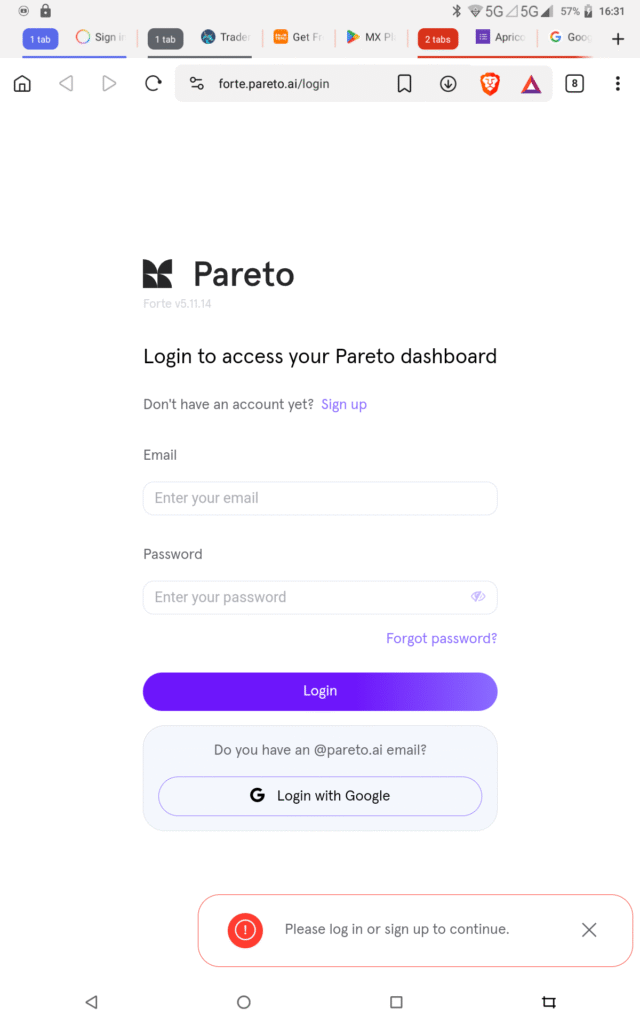
Step 1: To get started on the application process, CLICK HERE to open the Pareto website. Tap on “Sign up”
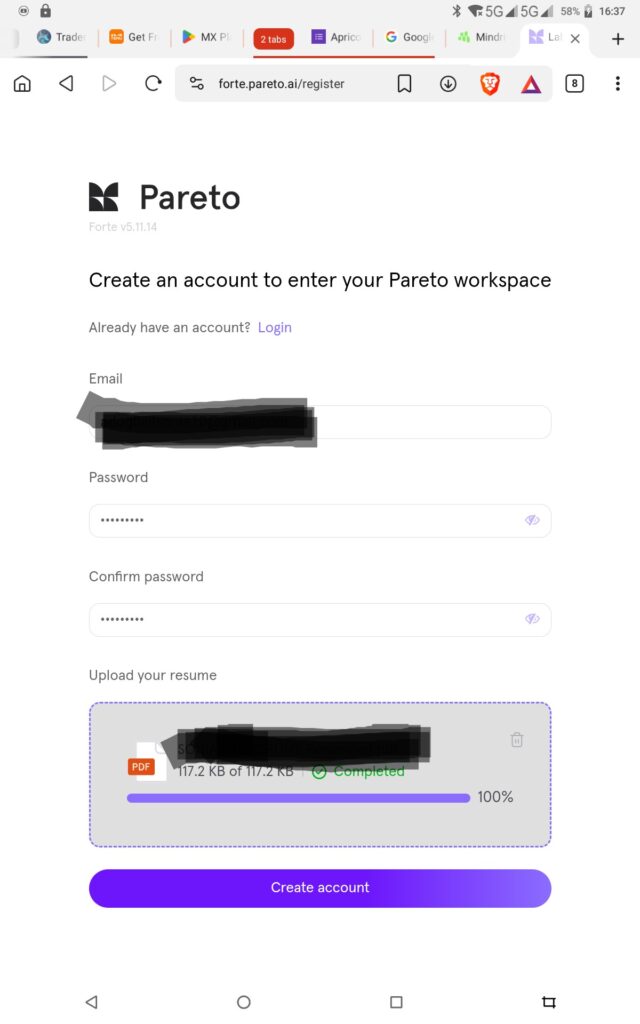
Step 2: Put in your email address and your desired password. Your password must be at least 12 characters long. Also upload your CV in either PDF or Docx format. Tap on “Create Account”
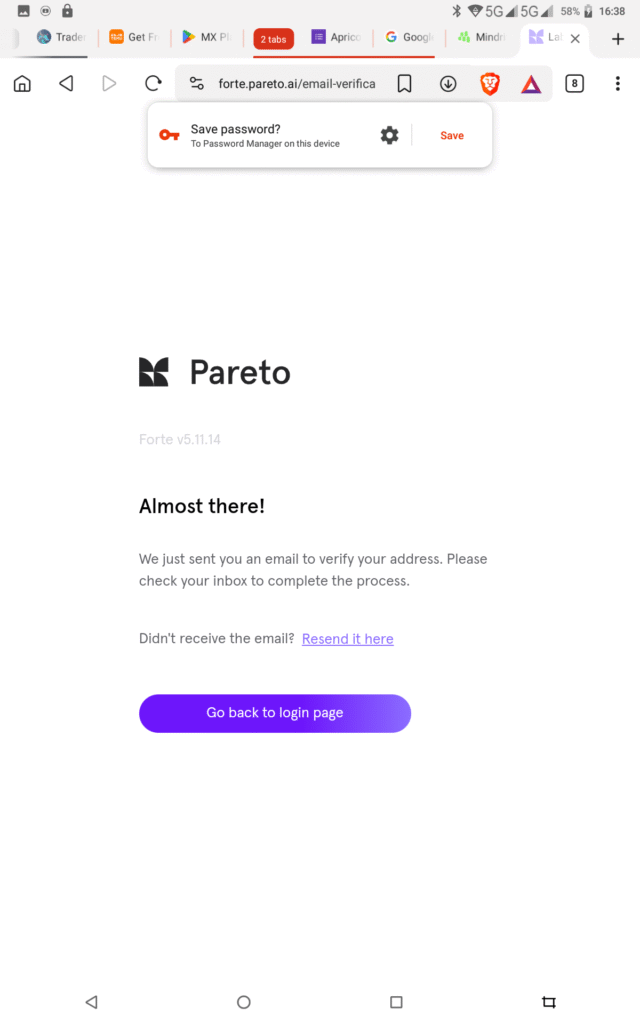
Step 3: You will be directed to this page. Minimize your browser and go to your email to look for a mail asking you to verify your account. If you do not see it in your inbox, check your Spam folder or go back to your browser and click on the “Resend it here” button.
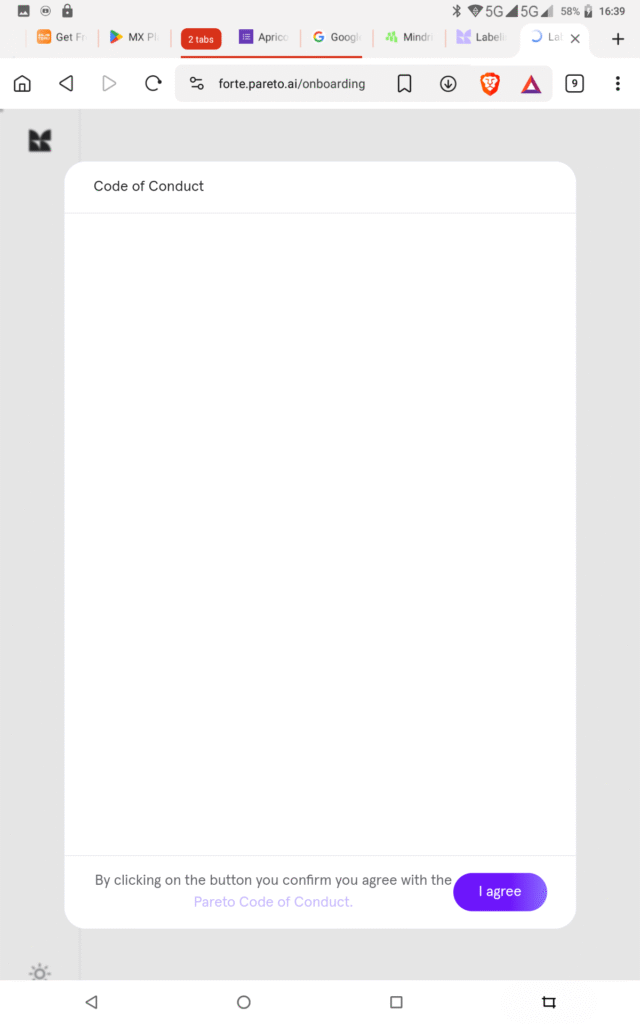
Step 4: Upon successful verification, you will be required to login. When you login, you will be shown a Code of Conduct page. Click on “I agree”.
Step 5: There are four processes in the onboarding process. You first have to fill in your Personal information, then your payment information, Tax forms and wait for verification. In the Personal Information page, put in your first name. Your last name is your surname. Only fill the “Address Line 1” and leave the other address options. Under “Native language”, choose English. If you speak any other language, be sure to fill it in the Additional Languages box. If you do not have a “LinkedIn” profile, do not fill the box. Choose your University attended and fill in the other boxes. Under “Field of Study”, you can fill in your areas of specialization. As you can see, here I chose Literature and Arts and Humanities as my area of specialization. The other boxes are optional. Tap on the “Yes” option below, indicating that you are eligible to work from your country without sponsorship from Pareto AI. Then tap on the box to confirm that what you have filled is accurate. After that, click on “Next”.
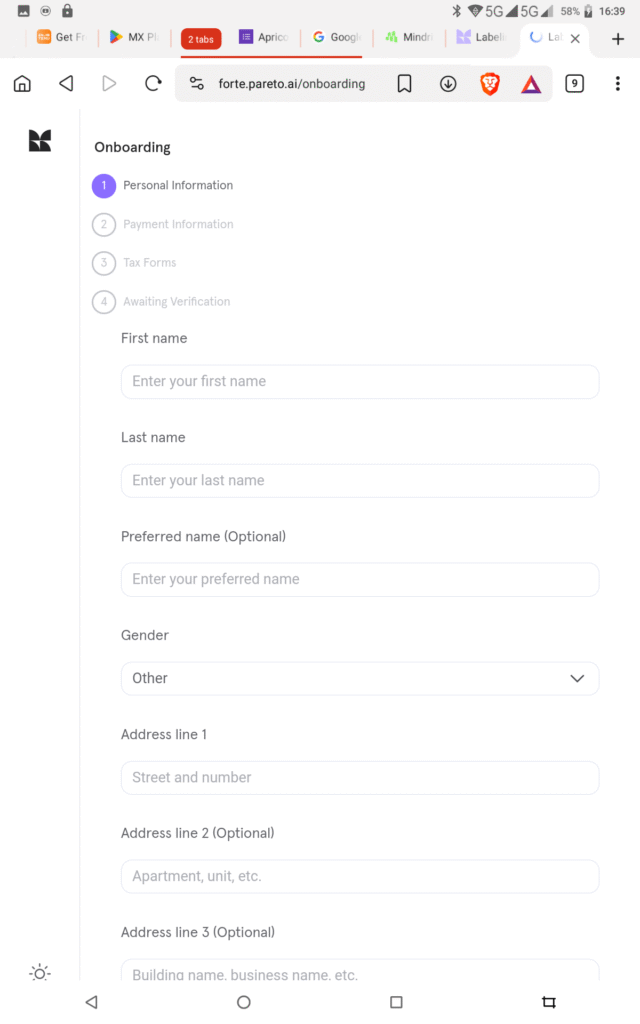
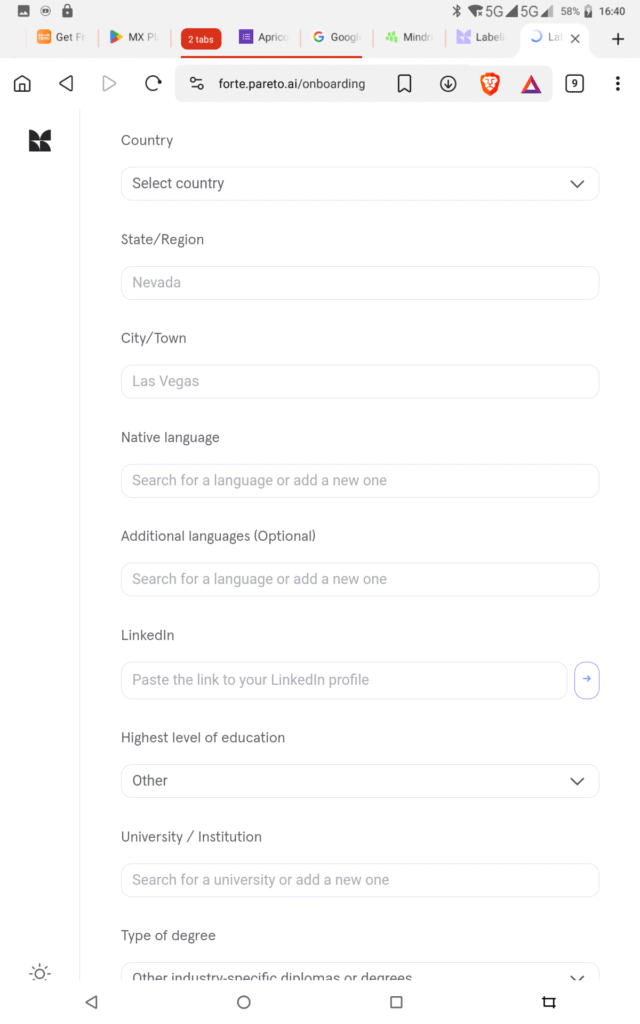
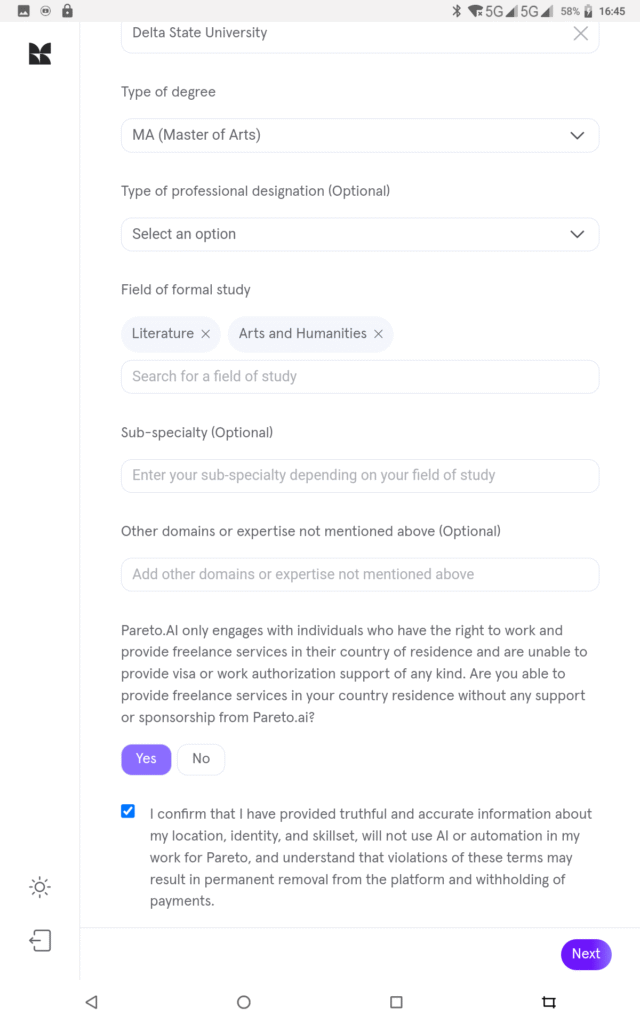
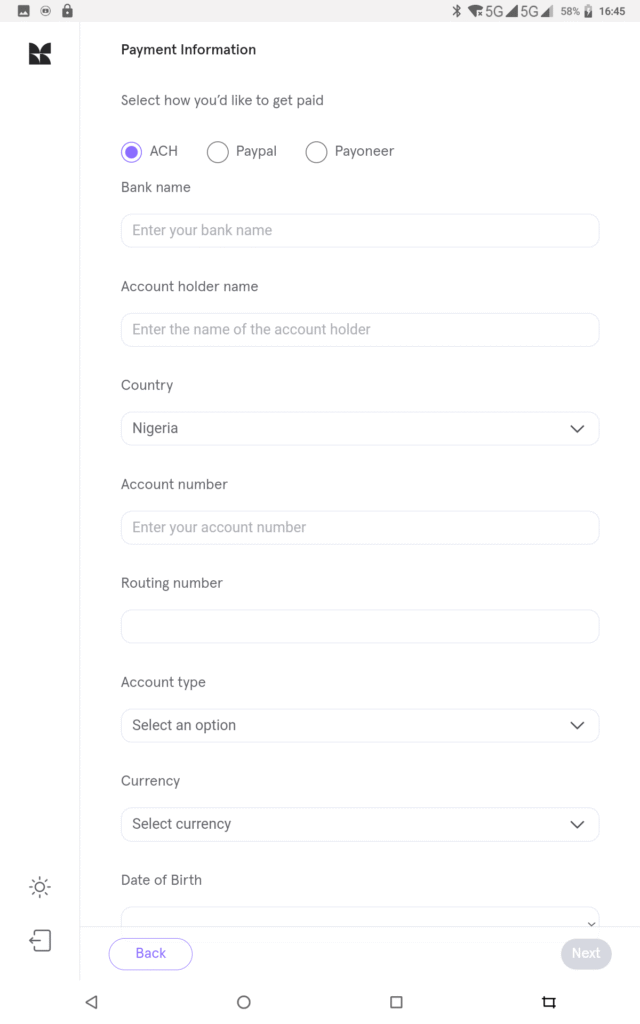
Step 6: In the Payment Information page, you have 3 options to fill in, if you have a USD bank account, you can choose ACH or if you have a Payoneer account, choose Payoneer. If you choose ACH, go to your USD account – maybe Grey and get all of your bank information. Fill in the information and click on “Next”. If you do not have any of this, CLICK HERE to read up our previous article on how to register a Payoneer and Grey account. If you click on Payoneer, you only need to fill in your name and email associated with Payoneer and then put in your date of birth.
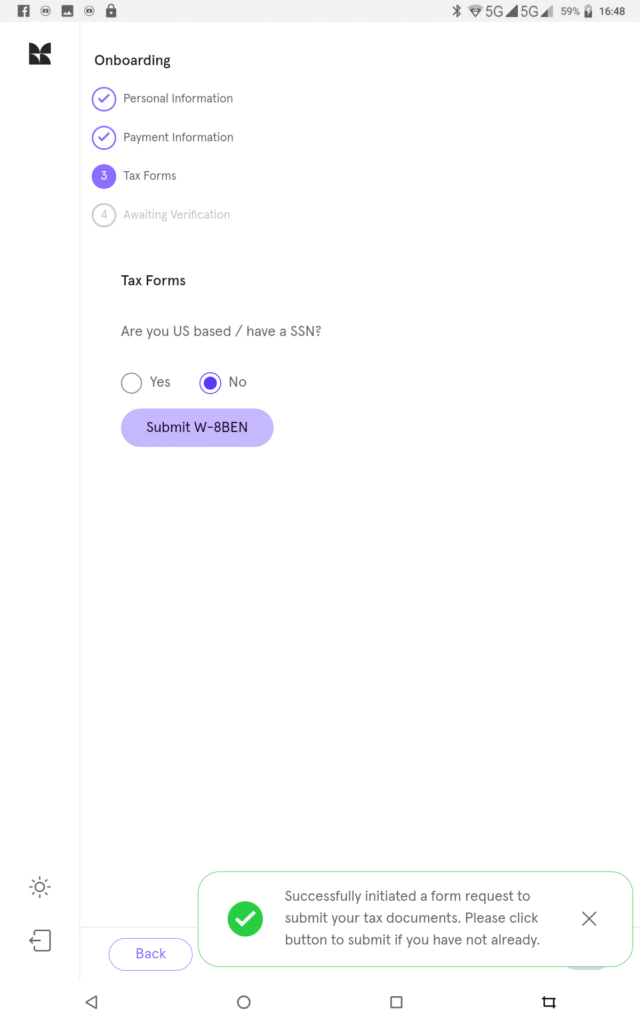
Step 7: To fill the Tax form, you have to choose if you are based in the US or not. In this case, choose No as you’re in Nigeria. Then tap on “Submit W-8BEN”. You will be required to fill in the forms here. Follow this process:
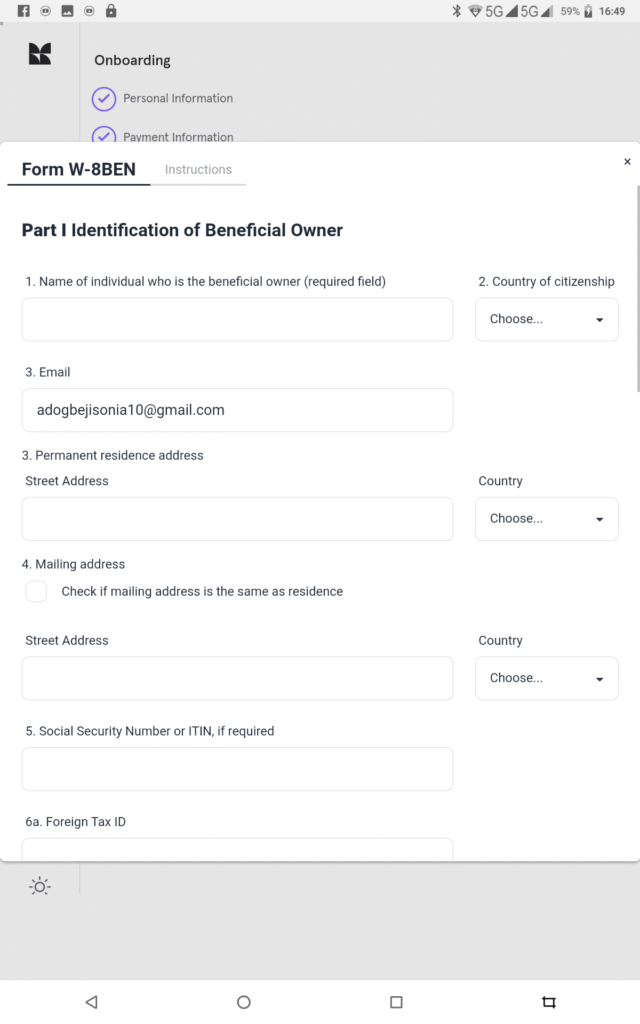
- Under name of individual, type in your full name
- Choose Nigeria as country of residence
- Type in your email address which you used in registering
- Type in your street address and choose Nigeria as country
- Under mailing address, tap on the box to indicate that the mailing address is the same as your residence.
- Do not fill in the social security number. Leave as blank
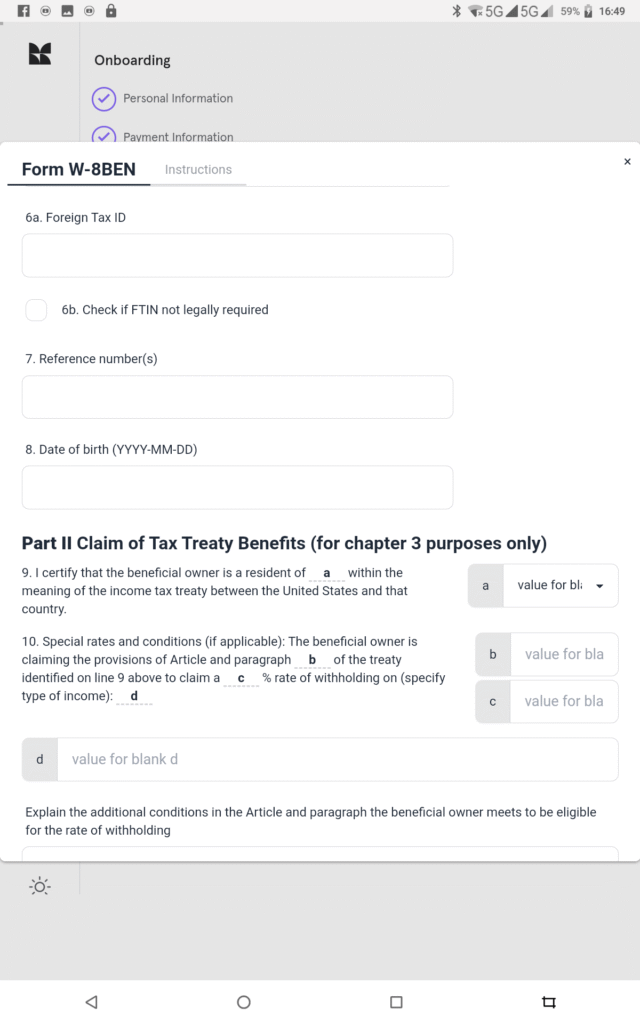
- Under option 6a, do not type anything, instead, go to 6b and tap on the box
- Do not type in a reference number. Leave as blank
- Type in your date of birth in this format: 2025-05-09 (year-month-date)
- Under the Claim of tax treaty benefits, under option a, choose Nigeria, in option B, type N/A, under option c, type 10%, and in option d, type N/A.
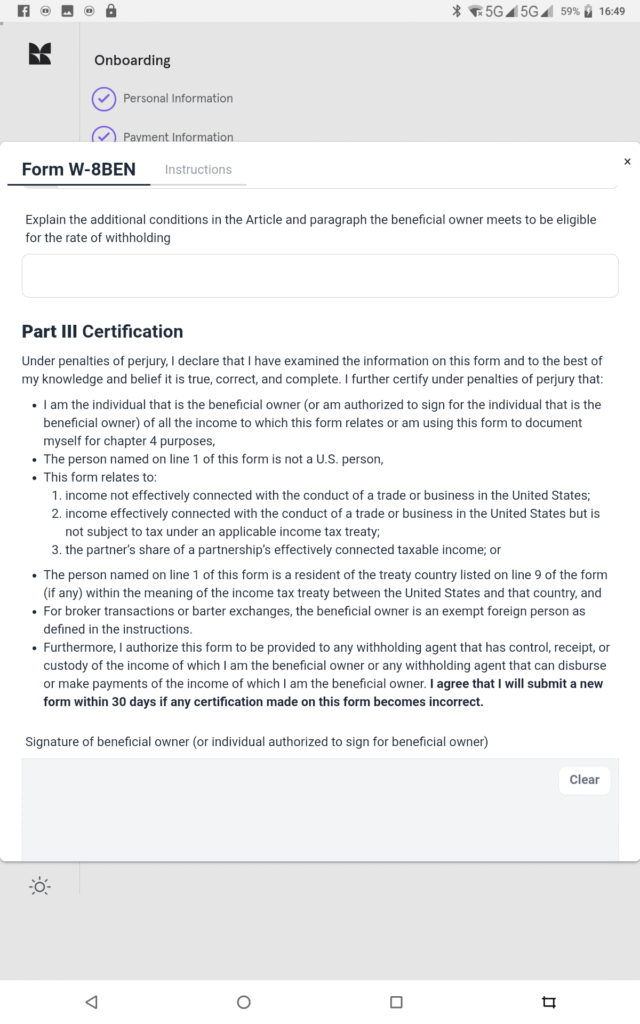
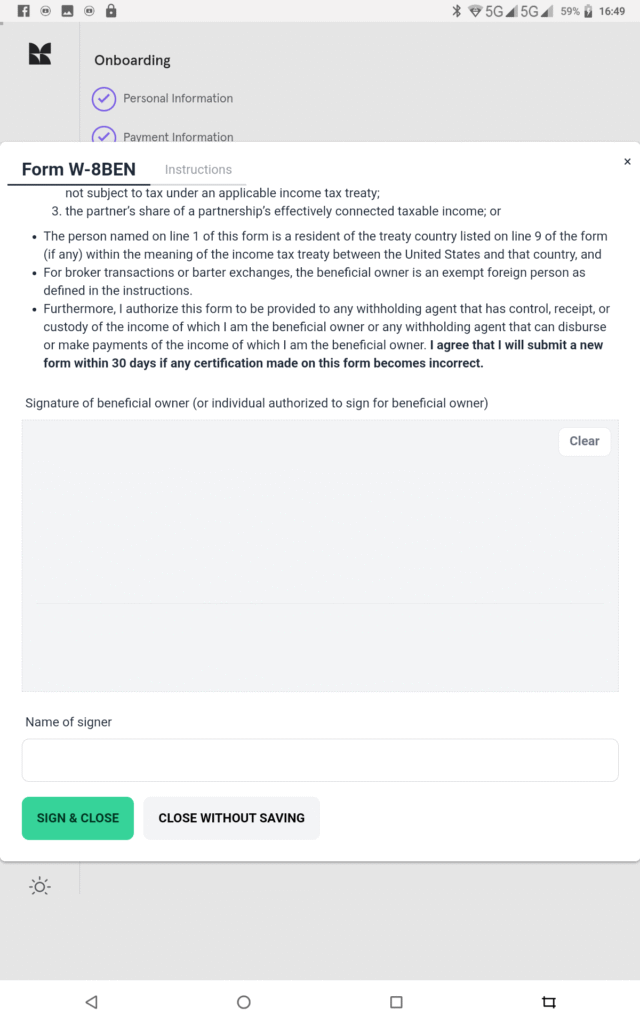
- In the box beneath, put in your signature and type in your name and click on “Sign and close”.
Congratulations, you will be shown the page below:
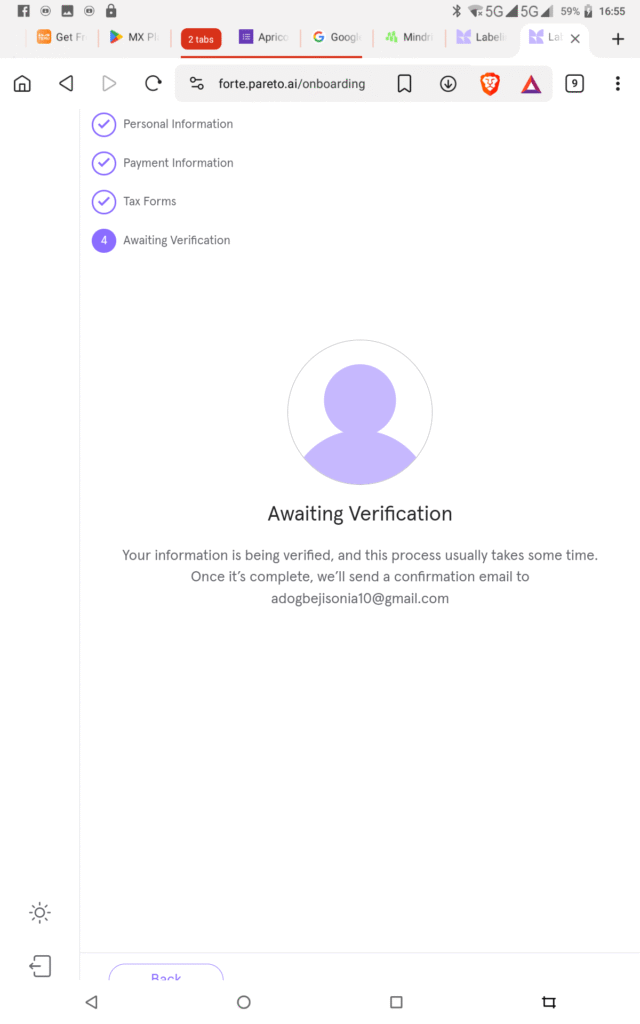
Typically, a mail confirming your onboarding may take 1-4 weeks, and sometimes, you may get a mail earlier than that. When you receive an onboarding email, please follow the instructions in the email to complete the onboarding process. Also, remember to always check your spam folder for any mail from Pareto AI. Good luck!
For a video guide on the Pareto application process, CLICK HERE.
If you enjoyed this article, kindly share to your friends and family who may be in need of a side hustle.



This is well-detailed and easy-to-follow guide✨. Not gonna lie it was a bit lengthy but guess I made it to the verification stage with the help of the guide. I think there was a change though and that was Under the “Claim of tax treaty benefits” option C I was asked to use decimal instead of percentage so I merely converted the 10% I just hope I did right…and the signature box is under “Part III Certification” so you have to scroll to the very end.
Thank you Tovia, yes, there have been some changes